
Remote Phone Call
The remote control for your mobile phone
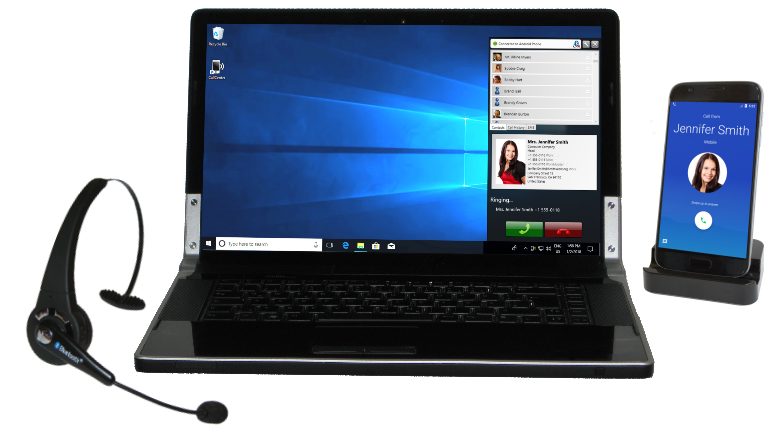
Remote Phone Call connects your mobile phone with your Microsoft Windows PC. You can easily dial numbers, answer and end calls and write SMS messages. All from your desktop and also directly from Microsoft Outlook...
Remote Phone Call

Remote Phone Call Trial
Remote Phone Call LK

Handsfree support
Features of PC client
- Dial numbers (PC2DIAL)
- Write SMS messages (PC2SMS)*
- Add-in for Outlook, Word and Excel
- Accept and end calls
- View and search phone contacts
- View call and SMS history*
- .NET/VBA API for own integrations
*SMS requires Android service or Bluetooth MAP
Features of Android service
- Auto start with WiFi and Bluetooth
- Show connection status
Requirements
PC client
 Microsoft Windows 7 or newer
optional
 Microsoft Office 2010 or newer
Android setup
 Android 4.0 or higher
 Bluetooth* enabled PC or a
 WiFi environment
Handsfree setup
 iPhone, Android phone or other
- Bluetooth* enabled PC
*Supported Bluetooth stacks: Microsoft
Details
The classic setup of Remote Phone consists of two components. Remote Phone Call, the app running as service on the Android phone, and the PC client CallCenter.
Starting with CallCenter 6.0 the PC client alternatively connects to the mobile device via the Bluetooth Handsfree profile. Using the Handsfree profile does not require a running App on your phone. Therefore, also iPhones and nearly all other mobile phones are supported.
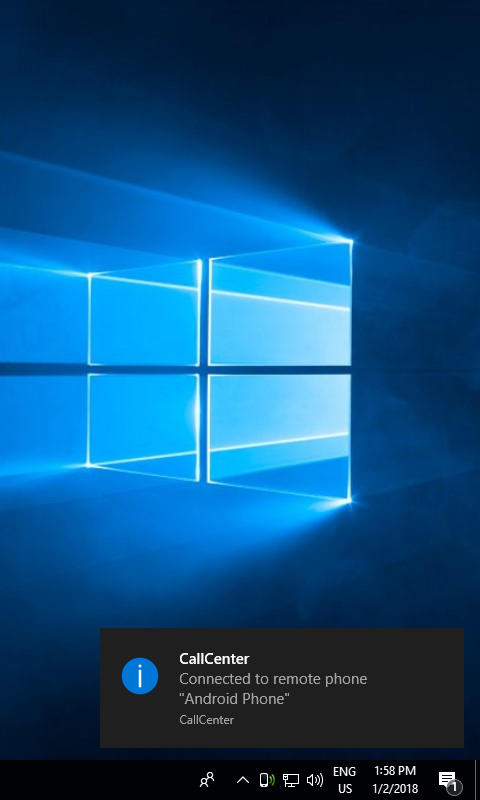
The PC client connects to the phone via Bluetooth or for the classic setup with the Android app service alternatively via WiFi.
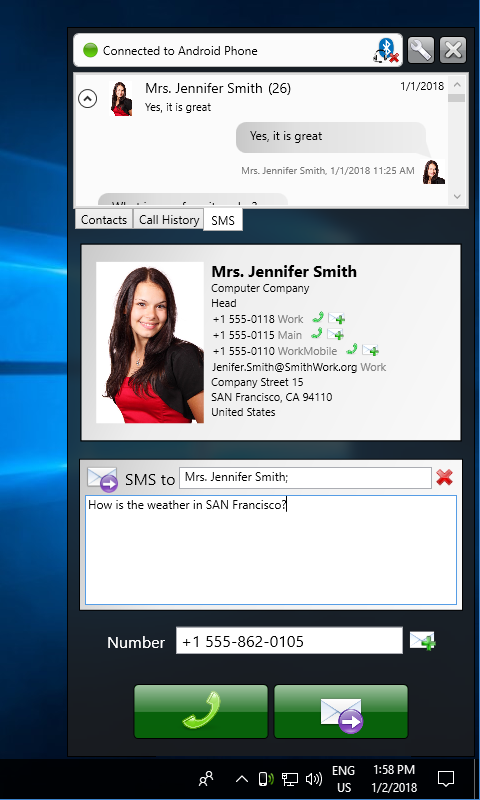
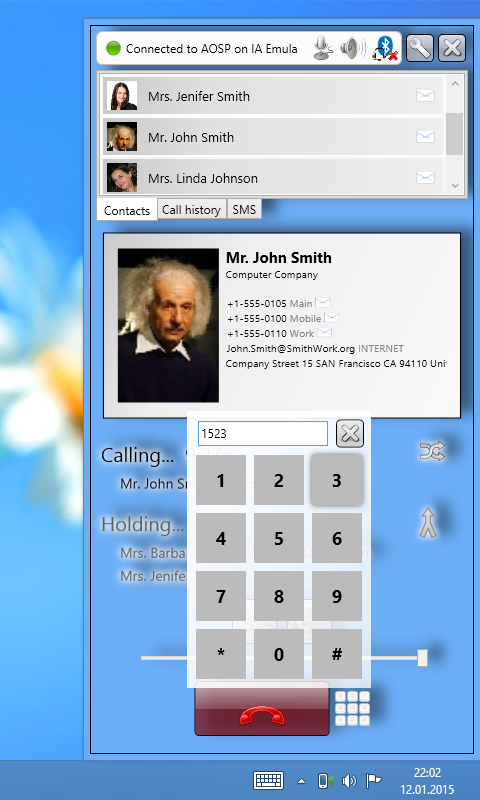
After establishing a connection, you can manage calls fully from your Microsoft Windows desktop. You can easily dial numbers from phone contacts, from the call history, from the clipboard, from Microsoft Outlook, Word and Excel and manually entered numbers. Further, you can accept and end calls. Using the Android app service or the Bluetooth Message Access Profile (MAP) additionally allows you to write and read SMS messages.
For the classic setup with the Android app we recommend the usage of a Bluetooth headset connected to your phone since call audio is not routed to the PC. In contrast, the Handsfree setup passes audio to the PC and you should use a headset connected to your PC.
Remote Phone Call Trial is offered as full functional 15 day test version on Google Play. Also on Google Play you will find the paid version Remote Phone Call. If Google Play is not available for you, Remote Phone Call LK will be an option. This licence key version can be downloaded from the download section and will work as 15 day trial before a licence key is needed. For the Handsfree setup no Android app is needed and you can just download and install CallCenter on your PC which also allows a free 15 day trial for the Handsfree feature.
Video & Screenshots
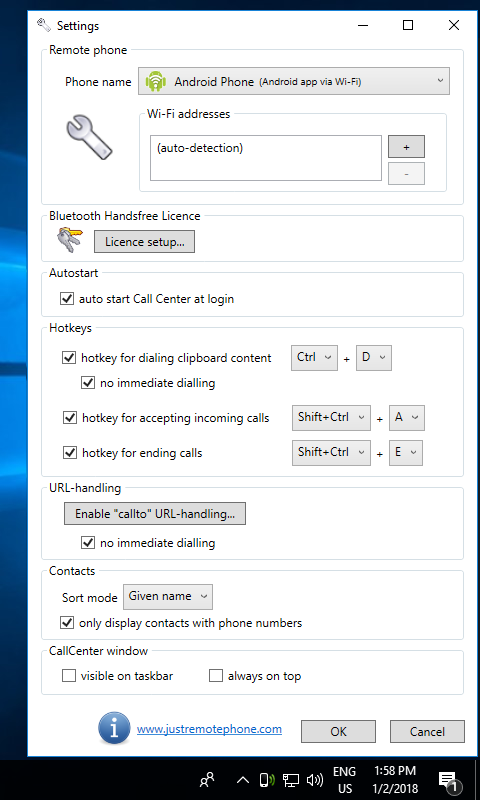
Watch our product video which demonstrates how CallCenter and Remote Phone are working together for the classic Android setup. CallCenter works nearly identically for the Handsfree setup. On the left site you can see the screen capture of a real Android device which is controlled remotely from a Windows desktop.
You can see how to start calls on the phone from CallCenter or directly from Microsoft Outlook. Also some details about writing and reading SMS messages, about contact search and various other features are shown.



Download
We recommend to download our phone app from Google Play.
 Remote Phone Call
Version 6.10
Remote Phone Call
Version 6.10
Remote Phone Call Trial
Version 6.10
If Google Play is not available for you, here is our licence key version which works as 15 day trial. After the test period a licence key is needed.
RemotePhoneLK.apk
Version 6.10
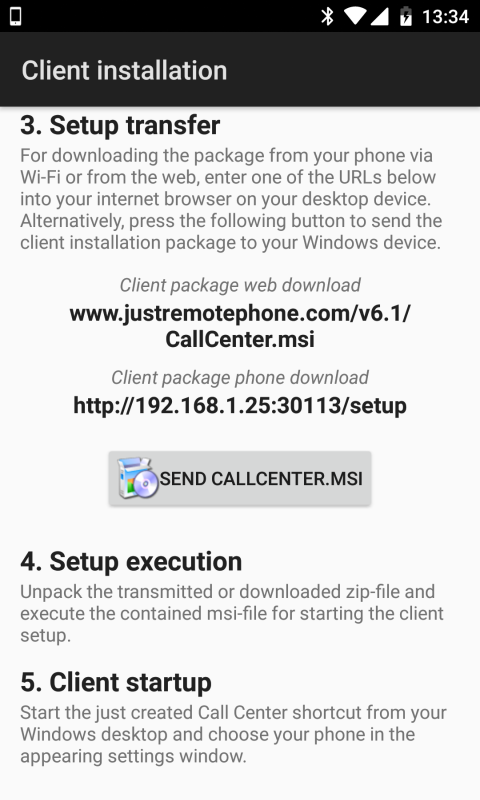
The PC client CallCenter works with our Android apps or without any app in the Handsfree mode. The client is included in the apps and can be transferred to the PC from your phone. You can also download the client installation package directly through the following link.
 CallCenter.msi
SDK
The PC client CallCenter contains a programing interface for VBA/COM and .NET. The API is designed to allow arbitrary integrations into other software packages like CRM systems. Our own Microsoft Office Add-in which installs with CallCenter also uses this API. Samples and the SDK files can be found in the SDK subfolder of the CallCenter program folder.
SDK features
- VBA/COM and .NET API
- Dial numbers
- Recognize incoming calls
- Accept and end calls
- Send and receive SMS messages
- Control the CallCenter main window
 API reference
Hello World sample
This simple sample shows how easy it is to dial a number from a C# Console Application.
using JustRemotePhone.RemotePhoneService;

class Program
{
  static void Main(string[] args)
  {
    Application app;
    app = new Application("Hello world!");
    app.BeginConnect(true);

    app.Phone.Call("+55 334634534");

    System.Console.ReadKey();
  }
}
Updates
Version 6.10
- NEWAndroid app: Some minor changes required for Android 12
- NEWPC client: Minor UI changes for Windows 11
Version 6.9
- FIXAndroid app: Call log empty on some Android 11 devices
Version 6.8
- NEWAndroid app: Dual-SIM support added
Version 6.7
- NEWHandsfree: CallCenter updated to use .NET 4.7
Version 6.6
- NEWAndroid app: New required permission for starting calls on Android 10
- FIXHandsfree: CallCenter stops connecting and hangs in background
Version 6.5
- FIXAndroid app: On Dual-SIM phones without a default call SIM use the default SMS SIM for calls
- NEWAndroid app: Some permissions needed for older Android verions removed
Version 6.4
- NEWAndroid app: Remove of an unneeded workaround for ending calls after a recent Android security patch
- FIXAndroid app: Some stability improvements for problems found by bug reports
Version 6.3
- NEWAndroid app: Use a new reliable function for ending calls on Android 9.0
- FIXAndroid app: Workaround for ending calls after a recent Android security patch
- NEWPC client: Some hints to make differences between connection types more clear
- FIXHandsfree: Stability improvements needed for some devices
Version 6.2
- FIXAndroid app: Some minor bug fixes and improvements
- FIXHandsfree: For iPhone audio got lost at answering calls
- FIXHandsfree: Audio not working for Nexus 5X running Android 8.0
Older updates...
Version 6.1
- FIXAndroid app: Answering calls not possible for Android 8.0
- NEWAndroid app: Using Android runtime permissions
- NEWAndroid app: Increase minimum required Android version to 4.0
- NEWAndroid app: Extended features removed
- NEWHandsfree: SMS support added
- FIXPC client: Minor bug fixes.
Version 5.7
- FIXFor some devices accepting calls does not work since November 2016 Android patch
- FIXSometimes Bluetooth connection does not work
Version 5.6
- NEWPC client style updates for Microsoft Windows 10
- FIXApp crashes for WiFi connections on Android 7.0
Version 5.5
- NEWExtended features for rooted phones
- NEWWiFi network filter for autostart feature
- FIXAnswering calls not possible on Android 5.0
- FIXSome special characters like # cannot be dialed
- FIXClient setup sometimes fails with DLL not found
Version 5.4
- NEWNew licence key version Remote Phone Call LK
- NEWHotkey for ending calls
- FIXSMS read status fix for Android 4.4
Version 5.3
- FIXCallto URL registration adapted for Windows 8
- FIXPC client sometimes crashes at startup
Version 5.2
- NEWApp option for disabling SMS features
- NEWNew option for contact sort order mode
- NEWSome GUI improvements
Version 5.1
- FIXBluetooth connection problems for Android 4.2 solved
Version 5.0
- NEWSMS messaging support added
- NEWOffice integration extended for Office x64
- NEWWI-FI connections while hotspot mode is active
- NEWHotkey for accepting incoming calls
- NEWSDK-extensions: COM/VBA API with Word macro example and SMS support
Version 4.0
- NEWMicrosoft Office integration for Outlook, Excel and Word added
- NEWSupport for WIDCOMM Bluetooth stack added (needed for some Windows XP systems)
- NEWSDK for the integration of remote control features into own applications added
Extended features
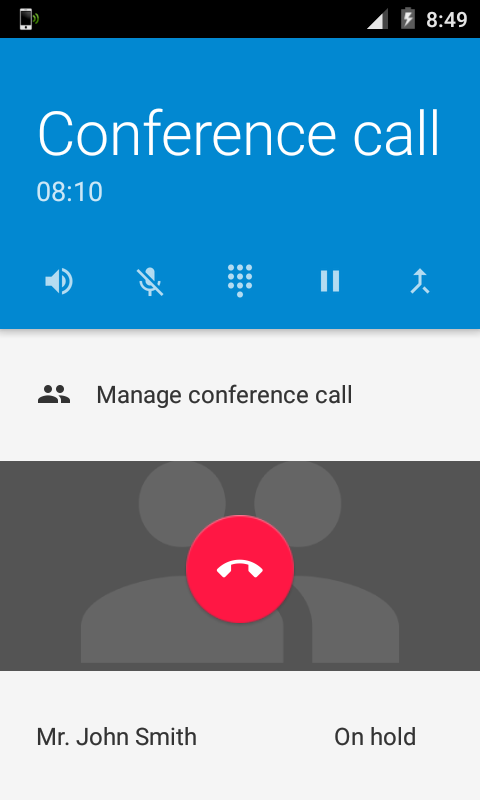
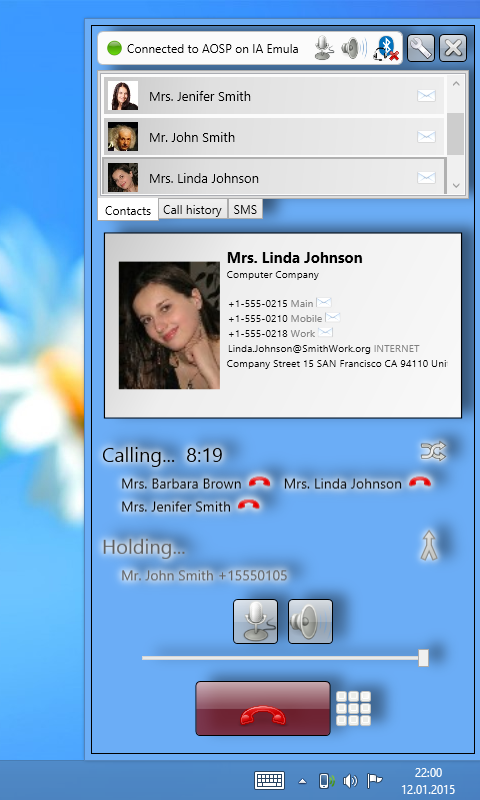
Because of architectural changes of the Android phone runtime extended features are currently deprecated and not available since version 6.1. Many thanks to all testers and your feedback. Maybe extended features for holding/activating calls, dialling DTMF tones, managing conference calls and so on will be available in a later version again.
Since begin of development of Remote Phone Call a full featured remote control of all phone functions was the goal. Although Android is a great development platform, there are some features which cannot be controlled by app developers. For example it is not possible to dial DTMF tones for active calls and to manage foreground, background and conference calls. Even such basic functions like answering and ending calls are not directly offered and may stop working in future Android releases.
Starting with Android 4.4.3 some of this missing functions and with Android 5.0 nearly all features are provided. Unfortunately this new functions are not usable for common app developers. They are only available for device manufactures and for users which owns rooted phones. Nevertheless, the current Remote Phone Call version adds experimental support for extended call management functions.
Please help and vote for a new Android feature that would allow to offer these extended functions also for non-rooted phones.
Additional features
- Hold/Activate calls
- Dial a second call
- Manage conference calls
- Dial DTMF tones
- Shows current call duration
Prerequisites
- Android 4.4.3 or above
- A rooted phone
- Remote Phone installed as system app within system/priv-app (see below)
Please vote to help
 Vote for a new Android feature

Install Remote Phone as system app
Installation of Remote Phone Call as system app is only possible on rooted phones or on devices with unlocked bootloader and installed extended recovery tools. Please note that rooting or unlocking can lead to severe damages of device and loss of warranty. WE ARE NOT RESPONSABLE FOR DAMAGS OF YOUR DEVICE OR ANY DATA LOSS. Help and vote to make this available for non-rooted phones too.
This is a brief instruction of two possible ways of moving the Remte Phone apk file to the system/priv-app folder which will give the needed permissions for extended features. For more details please do some web researche about this topic. ex.: "How to install any App as a system app on Android"
For rooted phones with SuperUser support
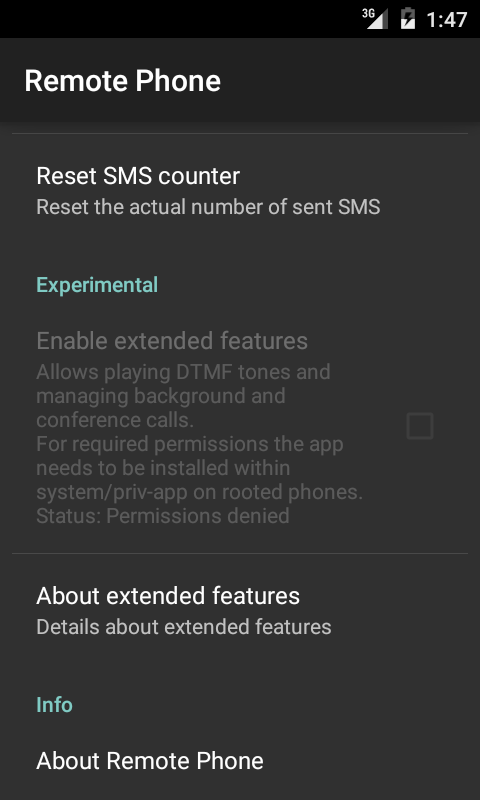
- Install Remote Phone on your device as usual. Open the settings screen of Remote Phone and verify that the "Enable extended feature"-option is visible but not enabled for activation. In the case the option is not visible, your device does not support extended features and is probably running an Android version below 4.4.3 or a the Remote Phone version is below 5.5.
- If a exteded recovery tool is installed, perform a complete system backup.
- Install the app ES File Explorer or a compareable file explorer with root support on your phone.
- Open ES File Explorer and activate the "Root Explorer" option under tools.
- Go to the folder "/data/app".
- On an Android 4 device look for the "justPhone.remotePhone...apk" and perform a cut-operation on the apk-file. For Android 5 look for the "justremote.phone...." folder and cut the folder.
- Go to the folder "/system/priv-app".
- Perform a past-operation.
- Reboot your phone.
- Start Remote Phone and verify, that the "Enable extended feature"-option is now enabled for activation.
For devices with extended recovery tools
- Install Remote Phone on your device as usual. Open the settings screen of Remote Phone and verify that the "Enable extended feature"-option is visible but not enabled for activation. In the case the option is not visible, your device does not support extended features and is probably running an Android version below 4.4.3 or a Remote Phone version is below 5.5.
- Boot into recovery mode and perform a complete system backup.
- Within recovery tool: mount your system image for write access
- Open a shell with root access on your PC via ADB or with a shell offered by your recovery tool if available.
- Use common shell commands and change the current folder to "/data/app".
- On a Android 4 device look for the "justPhone.remotePhone...apk"-file, for Android 5 look for the "justremote.phone...."-folder and move the apk-file respectively the folder to "/system/priv-app
- Reboot your phone.
- Start Remote Phone and verify, that the "Enable extended feature"-option is now enabled for activation.
FAQ
-
Can I use the PC microphone and speakers?
For the Handsfree setup the answer is yes. But for the classic setup with the Android service this is not possible. The Android platform doesn't allow this for app developers. Therefore we recommend to use a Bluetooth headset directly connected to your phone for best results. As an example of such a headset look at our product picture. We have an eye on this but we don't think that one of the next Android releases will make this possible.
-
Can I dial numbers while a call is active?
Unfortunately dialing DTMF tones for active calls is not possible for app developers on non-rooted Android phones. Starting with Android 4.4.3 experimental support for rooted phones was added to Remote Phone call. For details please see extended features. For the Handsfree setup dailing DTMF tones would be possible but is currently not implemented. This feature may be available in one of the next releases.
-
Is Remote Phone Call available for iPhone or other non-Android devices?
Yes, you need to use the Handsfree connection type of CallCenter. Connections to the Remote Phone Call app service is only available for Android. Currently only Android gives us the needed public features on the programing interface.
-
Are clients available for non-Microsoft Windows platforms?
Currently the only client platform is Microsoft Windows. This is because we have invested a considerable amount of time to implement a client which integrates as seamless as possible into your desktop environment. But this comes with the price of a platform dependent client. Clients for other platforms are currently not planned for the near future.
-
Why do WiFi connections consume more battery power than Bluetooth connections?
While the phone service is waiting for a new WiFi client or while it is connected via WiFi a CPU wake look needs to be held. Otherwise the phone would not be reachable or the connection would be lost. This wake lock for the main CPU is not needed for Bluetooth connections since the Bluetooth chip does the job. This saves power. In the case you use WiFi while your phone is not plugged to the power supply without the usage of CallCenter, you should stop the phone service and eventually disable the auto start option. In the case your PC is Bluetooth enabled you should prefer Bluetooth in preference to WiFi.
-
Does CallCenter work with Remote Desktop sessions?
Yes! CallCenter can be started once per user session. But of course, for server environments CallCenter could only use WiFi for phone connections and therfore Handsfree connections are not supported.
-
Can CallCenter be connected to the phone via a USB cable?
No, sorry, this is not possible.
-
Can CallCenter cause bad WiFi performance?
Unfortunately for some environments temporary, yes. Some Bluetooth/WiFi chipsets reduce the WiFi performance dramatically while a Bluetooth device search is performed. This should lead to better Bluetooth results since Bluetooth and WiFi use the same radio frequencies. CallCenter needs such lookups while waiting for a Bluetooth client. The problem disappears immediately after a connection has been established. As workaround for affected systems you should stop CallCenter from waiting for a Bluetooth phone connection while no phone is available. Just click on the status line at the head of the CallCenter main window. Click again for restarting the search.
-
Which licence type do I need?
The needed licence type depends on your needed setup.
For the classic setup via the Android service you would need to buy a Google Play licence for the app Remote Phone Call or, if Google Play is not an option for you, you could buy a licence key for the Android app Remote Phone Call LK. The LK key must be entered on the settings screen of Remote Phone Call LK on your phone. In both cases you do not need any further licence. The PC client CallCenter is free for connections to a licenced Android app.
For the Handsfree setup no app is needed. So, you need to buy a licence key for the Handsfree feature of CallCenter. This key must be entered on the PC-clients settings screen.
In the rare case you want to use both setup types, the classic setup with the Android app and the Handsfree setup, you would need to buy one of our Android app licences and a licence key for the Handsfree feature. But normally, you will need just one of the two possible setups. Look at our feature matrix to decide which setup best suits your needs.
-
Are the purchased licences time limited?
No, there are no time limits for our licences.
-
I got the message "Error downloading license certificate" for my Handsfree licence. What can I do?
To fix this error you need to upgrade to CallCenter 6.7 or above. In the case you are still using Windows 7, for which official support ended in January 2020, you need also to create following registry keys:
[HKEY_LOCAL_MACHINE\SYSTEM\CurrentControlSet\Control\SecurityProviders\SCHANNEL\Protocols\TLS 1.2\Client]
"Enabled"=dword:00000001
"DisabledByDefault"=dword:00000000
After that a reboot is require. For further details how to enable TLS1.2 support for Windows 7 clients please see tls-registry-settings.
Support
Any questions? Please help us to save resources and take a look at our FAQs before writing us. We have tried to give helpful answers for the most common questions.
Do you have any suggestions or other problems? Send us a mail. We will help you!
Donate
Do you like our work? Please feel free to support us further. Many thanks!